Setup Instructions
1. Install the Extension
Open the Ironmon Tracker, go to Extensions, open the General tab, and click "Install a new extension".
When prompted, enter this URL:
2. Enable the Extension
After the install completes, find IronmonConnect in your extensions list and turn it on.
3. Open IronmonConnect
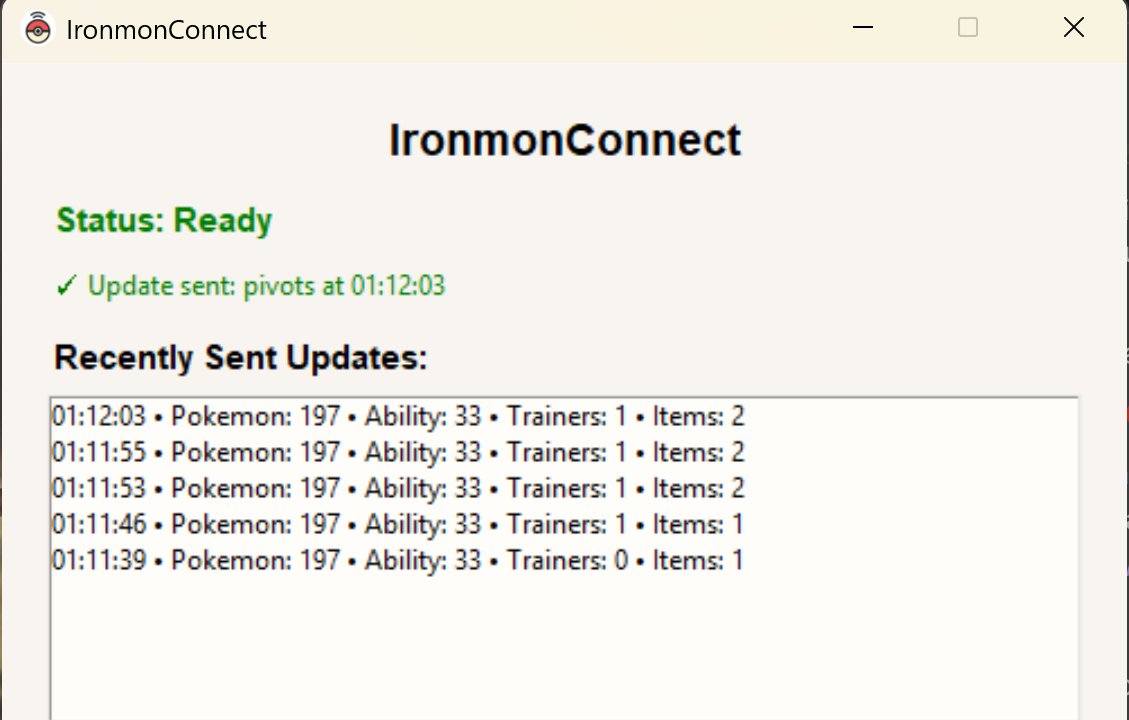
Click the "Options" button on the extension to open IronmonConnect.exe. Keep this application open while you play.
4. Connect Your Twitch Account
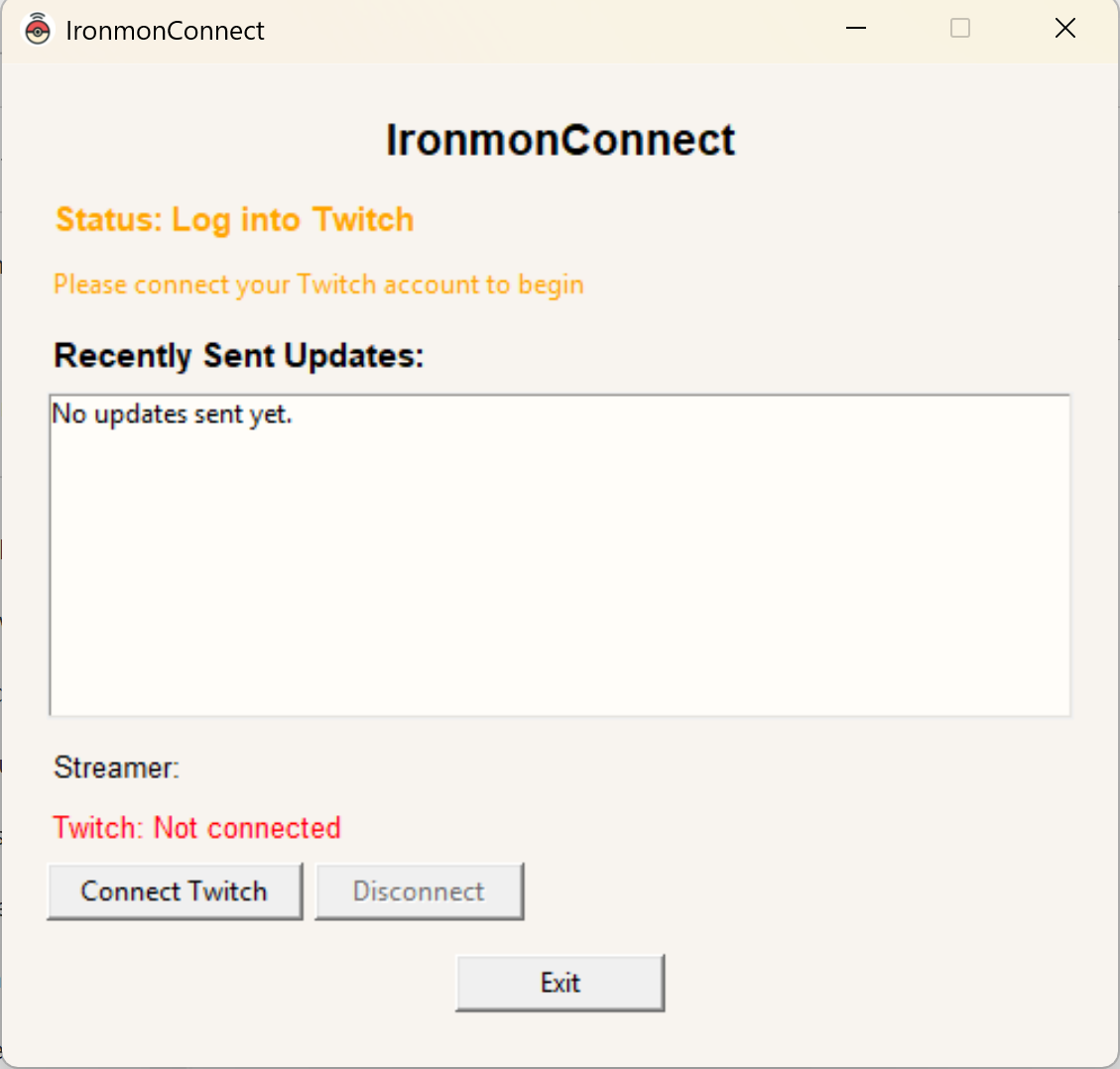
Open IronmonConnect.exe and click "Connect Twitch" to authenticate your account.
5. Test the Viewer (Optional)
Before adding the extension to Twitch, you can test if the viewer is working correctly by visiting your profile page and clicking "Open Viewer Preview". This will show you exactly what viewers will see when they interact with your stream data.
6. Add the Twitch Extension
Add the IronmonConnect Twitch Extension to your channel. Install the Extension here
7. Add Extension to Your Stream
Add the extension to your twitch stream as an overlay.
8. Start Streaming
Once everything is set up, the application will automatically send your run data to the extension while you stream.